You will learn
Learn about user profiles, including how to search for them, filter your audience, and interpret the data available on the individual profile detail page. Profiles are used to keep track of all the information and interaction history you have about your customers and prospects.
About user profiles
The platform maintains a complete record of contact for each person in your account. This means a single, unified profile is created and maintained for every contact. If a user belongs to multiple segments or interacts through various channels, all of this data is consolidated into one dedicated profile.
Access a profile
-
Navigate to Audience > User profiles.
Here you will see a list of profiles displaying key information such as Email, Full Name, Profile ID, Phone, Profile created date, and Profile updated date. You can also view suppressed profiles by clicking the View suppressed profiles button.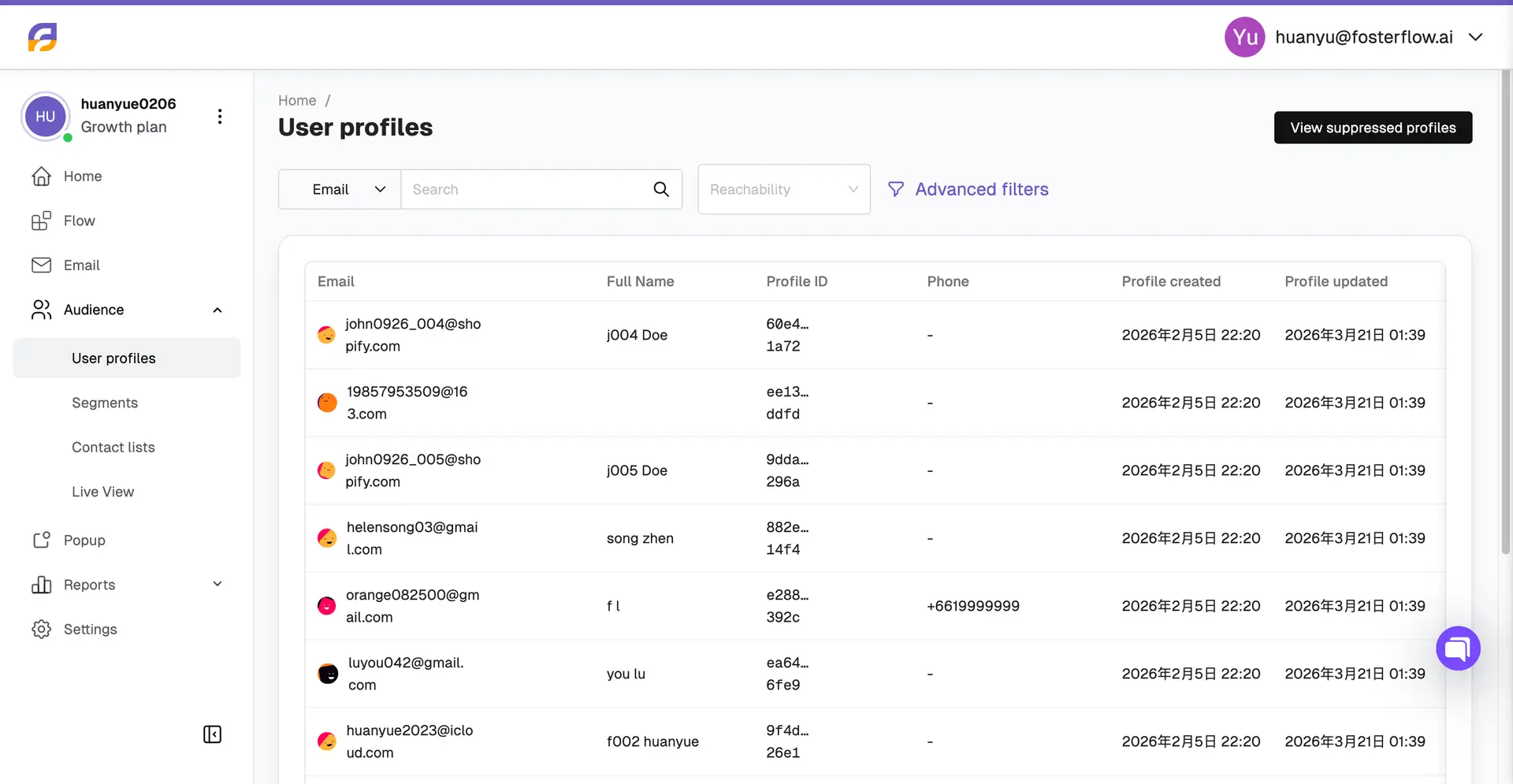
-
Use the search bar to find a specific contact. You can click the dropdown next to the search bar to specify your search by Email, Phone, or Profile ID.

-
You can quickly filter the list by their contact status using the Reachability dropdown, selecting either Reachable or Unreachable.

Advanced filters
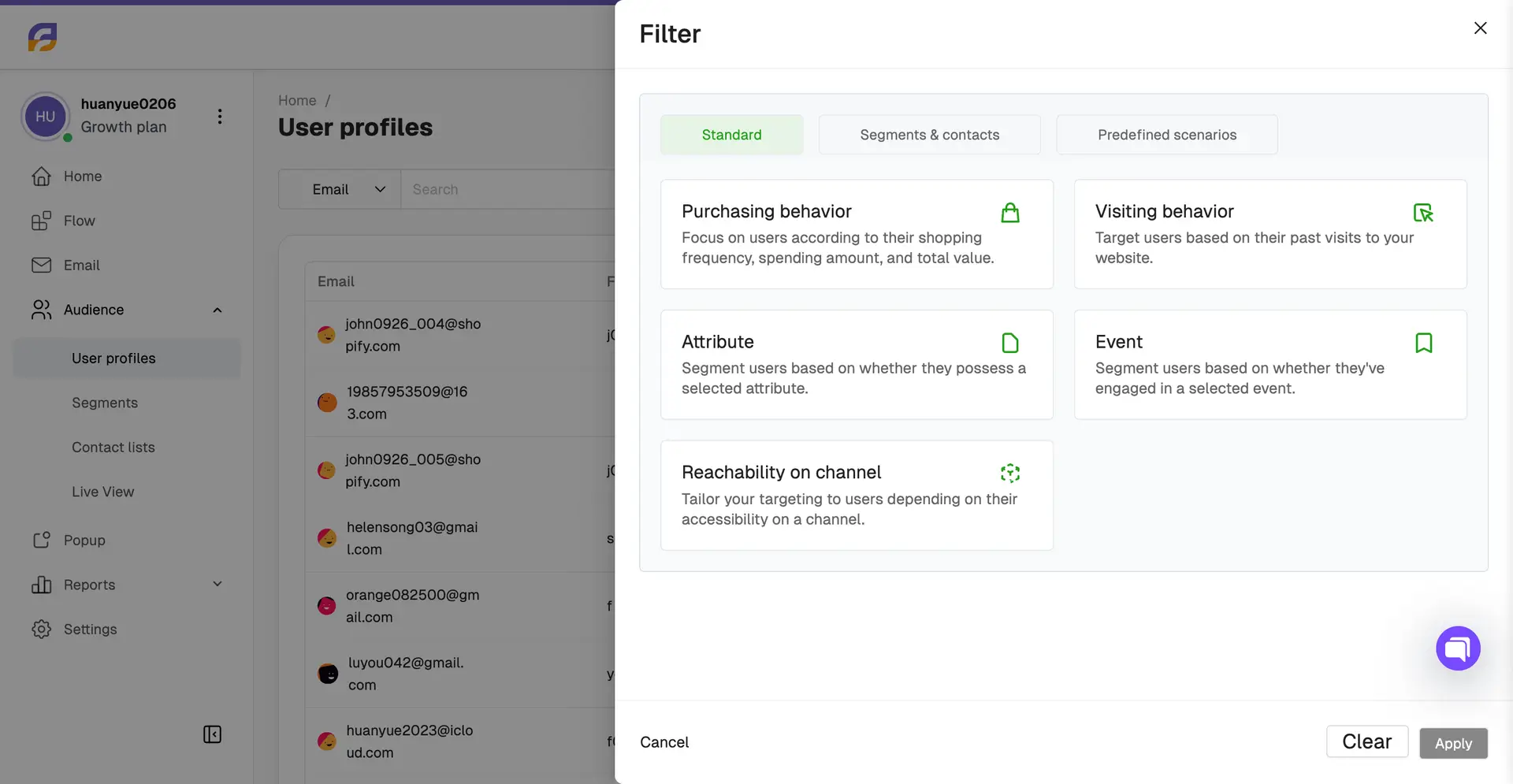
For more granular segmentation directly from the User profiles page, click the Advanced filters button.
This opens a filter modal where you can target users based on specific criteria across different tabs (Standard, Segments & contacts, Predefined scenarios). Standard filters include:
* Purchasing behavior: Focus on users according to their shopping frequency, spending amount, and total value.
* Visiting behavior: Target users based on their past visits to your website.
* Attribute: Segment users based on whether they possess a selected attribute.
* Event: Segment users based on whether they’ve engaged in a selected event.
* Reachability on channel: Tailor your targeting to users depending on their accessibility on a channel.
Review the profile page
When you click into an individual user, you will see their unique Profile ID displayed at the top right. The main profile page is divided into a persistent left sidebar for events and 4 main tabs for specific data:
- Overview: Provides a general summary of the profile’s interactions and engagement metrics.
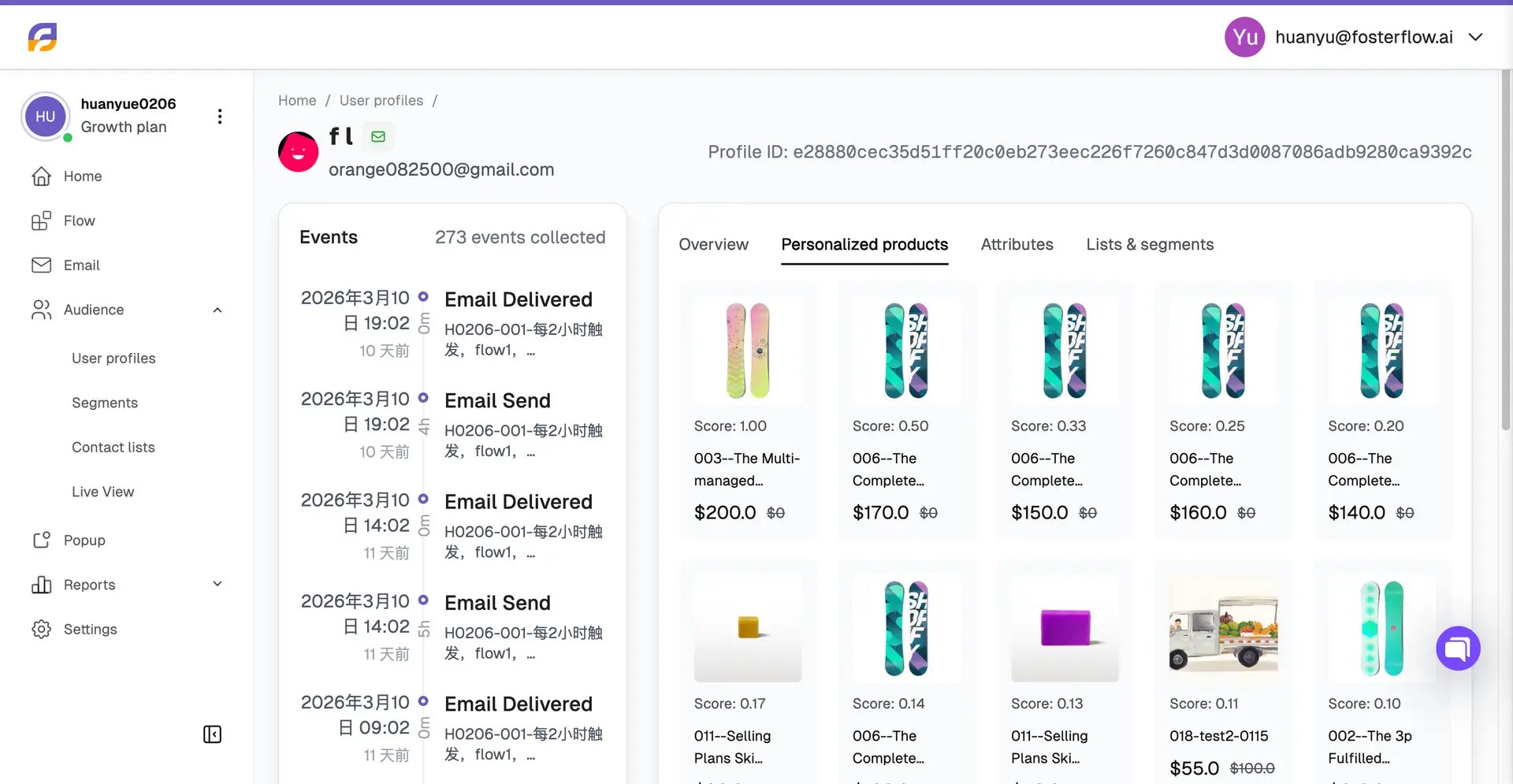
- Personalized products: Shows AI-driven product recommendations tailored specifically for this user.
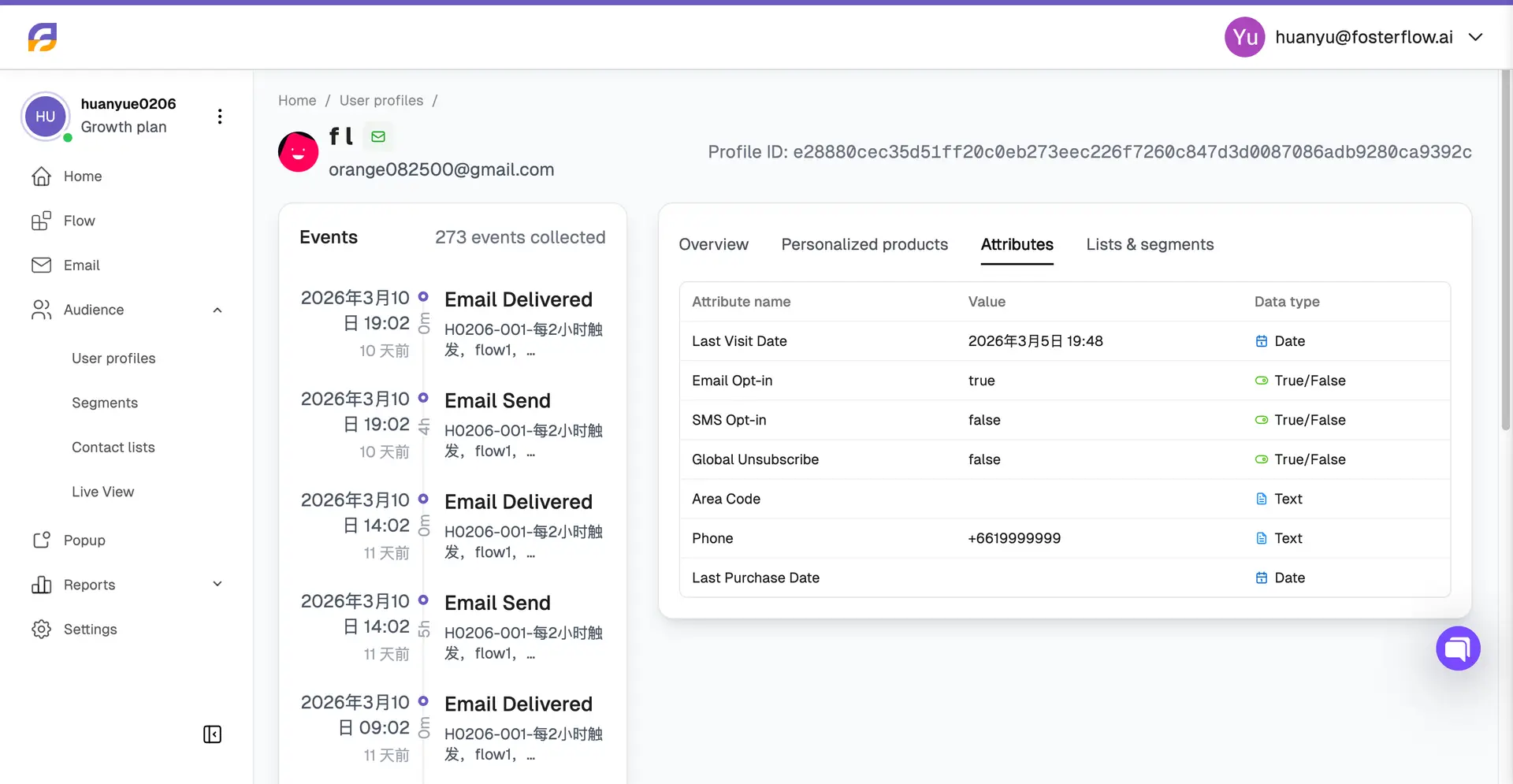
- Attributes: Displays all standard and custom data fields associated with the profile.
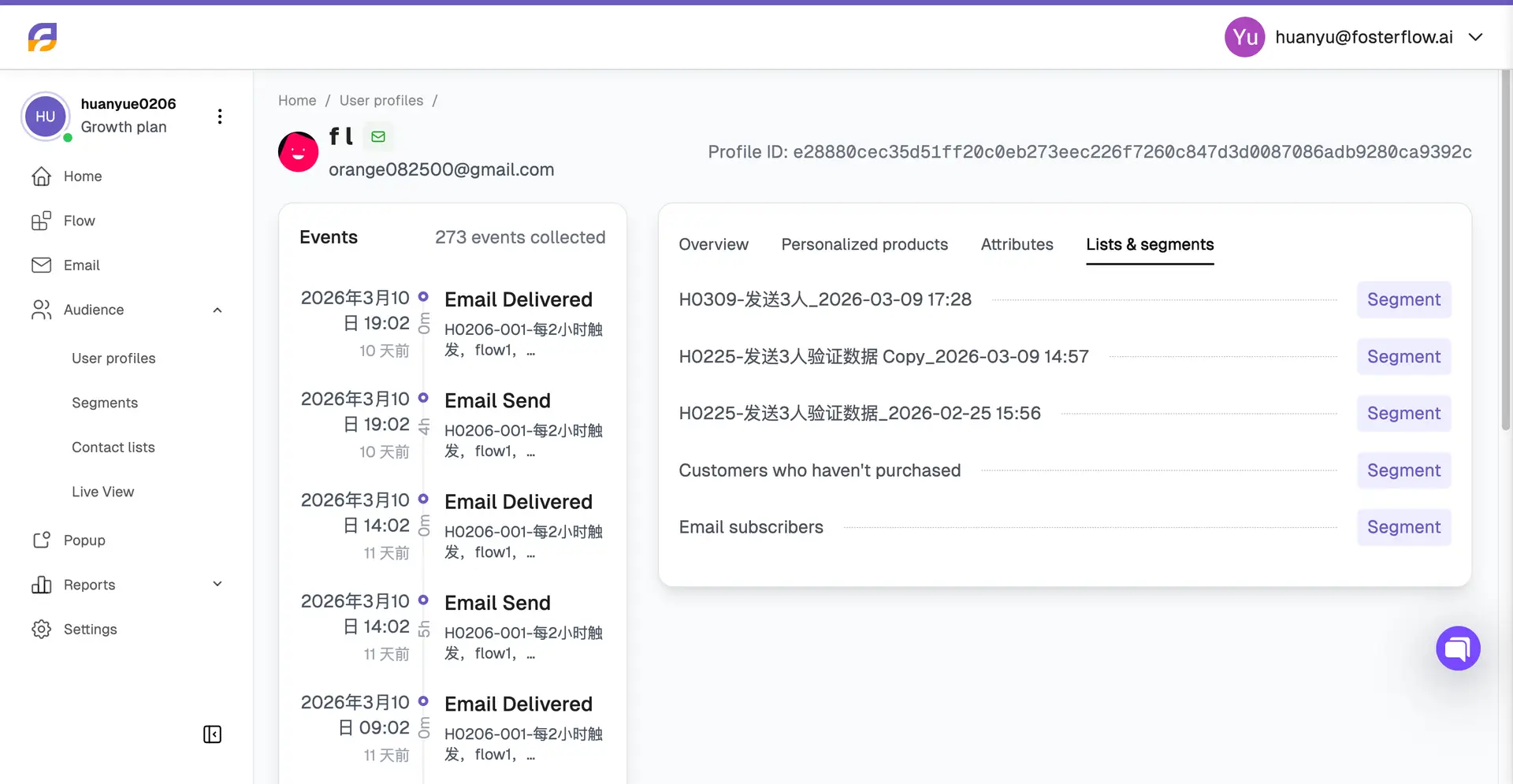
- Lists & segments: Shows all the lists and dynamic segments the profile is currently a member of.
Understand the profile page
On a contact’s profile page, you’ll see the following detailed sections:
Events (Activity log)
Each individual profile features an Events timeline on the left side of the page to capture a complete history of their interactions with your business (e.g., Email Send, Email Delivered). This timeline is visible across all the tabs on the profile page and displays the total number of events collected.
Overview
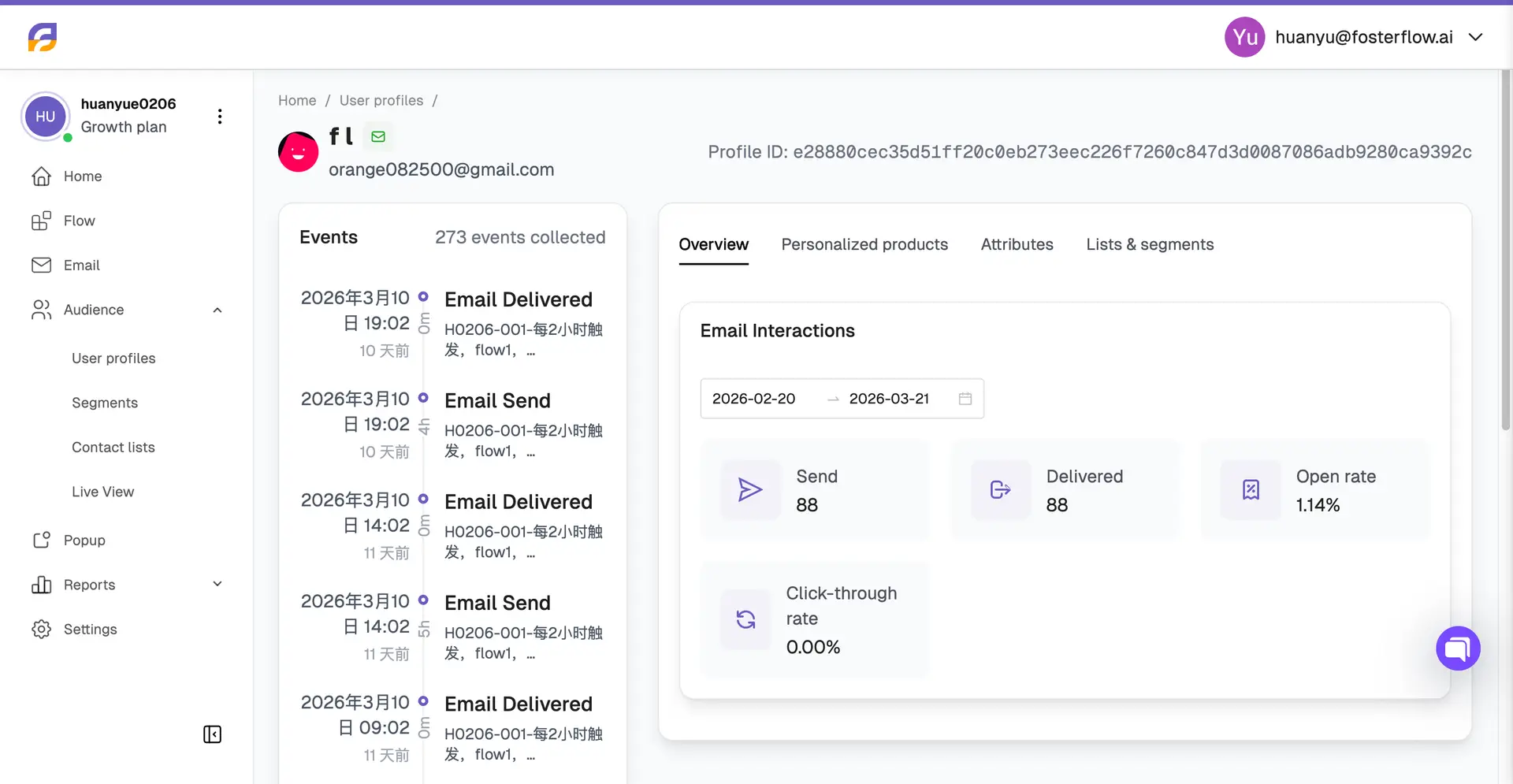
The Overview tab highlights the contact’s overall engagement. Here you can view aggregated metrics such as Email Interactions, which includes total Sends, Delivered messages, Open rate, and Click-through rate over a selected date range.
Lists & segments
The Lists & segments tab shows all the segments a profile currently belongs to. This helps you understand which targeted groups the user falls into based on their past behavior and attributes (e.g., “Customers who haven’t purchased” or “Email subscribers”).
Attributes
The Attributes tab allows you to view the properties stored about the contact. This includes the Attribute name, its corresponding Value, and the Data type (e.g., Date, True/False, Text). Examples of attributes include Last Visit Date, Email Opt-in status, Global Unsubscribe status, and Phone number.
Personalized products
The Personalized products tab displays product recommendations generated for the specific user. Each product card shows an image, a predictive Score indicating the likelihood of interest, the product name, and the price. This feature is highly useful for understanding user preferences and tailoring future marketing efforts.