
Overview
A flow trigger is the starting point of any automated journey in FosterFlow. It dictates exactly who qualifies to enter your flow and when they should begin receiving your communications.
You can start building your flow by selecting a trigger first. The trigger element can be a user action or an attribute that matches the users with a segment or rule which will let them into your flow. Understanding how to properly select and configure your triggers is essential for building effective, highly targeted marketing automation.
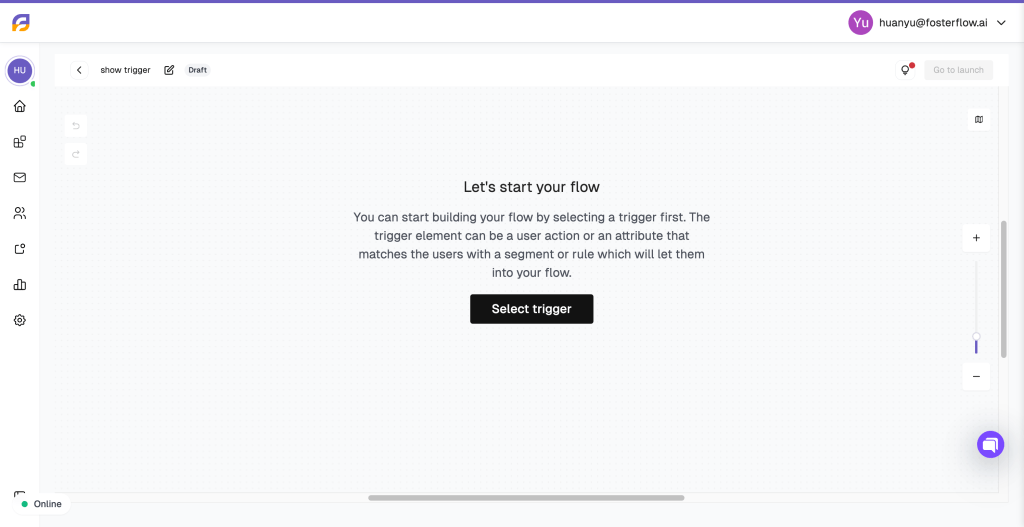
On Event
1. Usage Scenarios for “On Event”
The On Event trigger is used when you want users to enter a flow immediately after they perform a specific action on your website, app, or through another integrated channel. This trigger is highly reactive and operates in real-time, making it perfect for transactional messages, behavioral follow-ups, and immediate engagement (e.g., sending an email exactly when someone adds an item to their cart).

2. Supported Events and Event Parameters
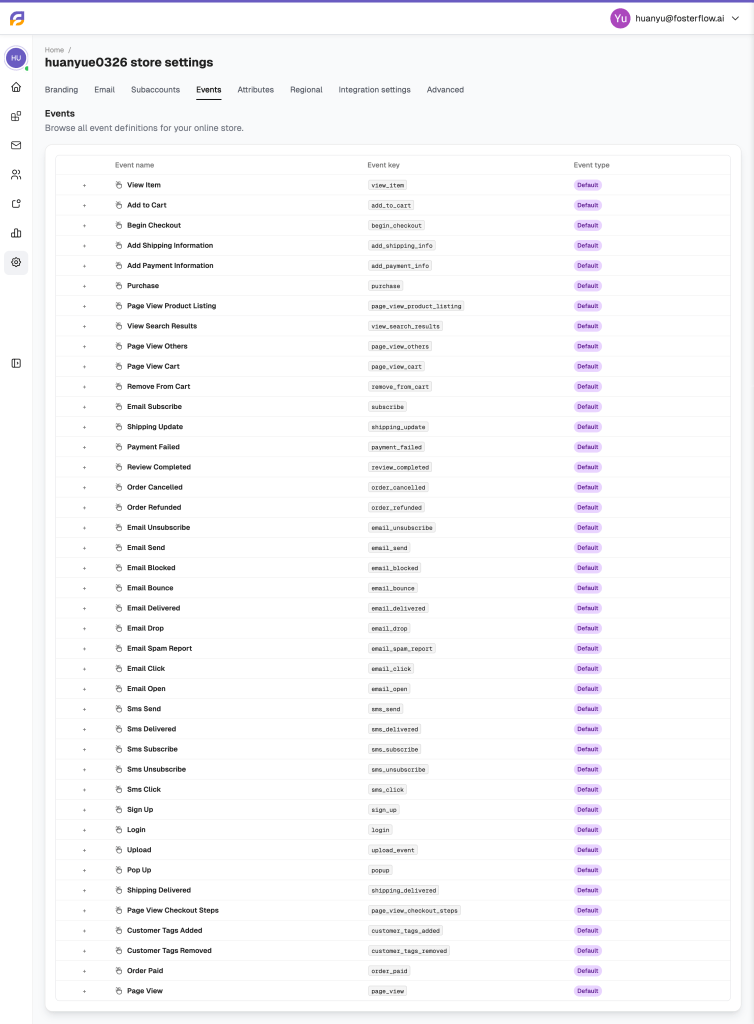
FosterFlow tracks a wide variety of default events across your store to help you trigger flows accurately. As shown in your store settings, the supported event list includes but is not limited to:
* Shopping Activity: View Item, Add to Cart, Remove From Cart, Page View Cart, View Search Results
* Checkout & Purchase: Begin Checkout, Add Shipping Information, Add Payment Information, Purchase, Order Paid, Order Cancelled, Order Refunded
* Engagement & System: Email Subscribe, Sign Up, Login, Review Completed
* Message Interactions: Email Open, Email Click, Sms Send, Sms Click
When configuring an event, you don’t have to target everyone who performs it. You can narrow down your audience using Event Parameters. For example, a View Item or Add to Cart event contains rich parameters such as Item IDs, Item Prices, Item Categories, Page URL, and Cart Total. By adding an event parameter condition (e.g., targeting users who “Add to Cart” where the “Cart Total is more than 100”), you ensure only high-intent or high-value users enter the flow.

3. Trigger Frequency
Trigger Frequency controls how often a user can enter your flow after performing the triggering event. Depending on your strategy, you might want a user to enter the flow every time they perform the action, or you might want to restrict them to only enter once, or perhaps allow them to re-enter only after a certain number of days has passed. This prevents over-messaging users who might repeatedly trigger the same event within a short timeframe.
4. E-commerce Use Cases
- High-Value Abandoned Cart: Trigger a flow on
Add to CartorBegin Checkout, use event parameters to filter forCart Total is more than 150, and follow up with a special discount to close the sale. - Post-Purchase Cross-Sell: Trigger on
Purchase. Wait a few days, then recommend products related to theItem Categoriesparameter from their specific order. - Welcome Series: Trigger immediately on
Email SubscribeorSign Upto deliver a welcome discount code and introduce your brand.
On Past Behavior
1. Usage Scenarios for “On Past Behavior”
While “On Event” waits for a new action to happen, On Past Behavior allows you to proactively target users who already match a set of historical conditions or attributes. You can let users into your flow based on their cumulative history with your brand, rather than a single real-time action. This is ideal for lifecycle marketing, re-engagement campaigns, and VIP customer nurturing.
2. Targeting Capabilities Across Three Tabs
When configuring the “On Past Behavior” trigger, FosterFlow provides three distinct tabs to help you define your audience effortlessly:
Standard Tab
This tab provides core behavioral categories:
* Purchasing behavior: Focus on users according to their shopping frequency, spending amount, and total value.
* Visiting behavior: Target users based on their past visits to your website.
* Attribute: Segment users based on whether they possess a selected attribute.
* Event: Segment users based on whether they’ve engaged in a selected event historically.
* Reachability on channel: Tailor your targeting depending on their accessibility on a specific channel.

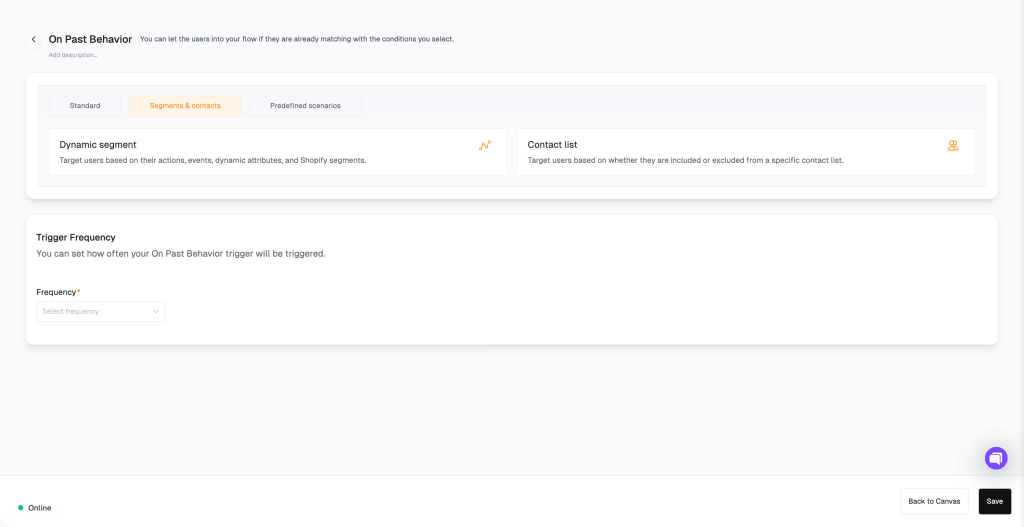
Segments & contacts Tab
This tab focuses on your pre-built lists and dynamically updating audiences:
* Dynamic segment: Target users based on their actions, events, dynamic attributes, and store segments. Users enter the flow as they meet the segment criteria.
* Contact list: Target users based on whether they are included or excluded from a specific static contact list.
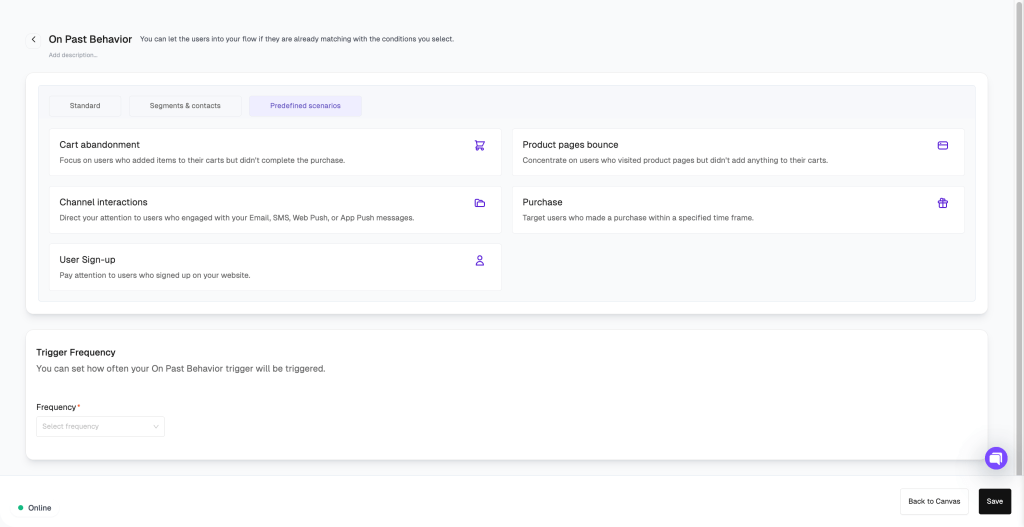
Predefined scenarios Tab
For quick setup, this tab offers ready-to-use templates for common marketing goals:
* Cart abandonment: Focus on users who added items to their carts but didn’t complete the purchase.
* Product pages bounce: Concentrate on users who visited product pages but didn’t add anything to their carts.
* Channel interactions: Direct your attention to users who engaged with your Email, SMS, Web Push, or App Push messages.
* Purchase: Target users who made a purchase within a specified time frame.
* User Sign-up: Pay attention to users who signed up on your website.
3. E-commerce Use Cases
- VIP Customer Reward: Use the Standard > Purchasing behavior to trigger a flow for users whose lifetime spending exceeds a certain amount, sending them an exclusive early-access email for an upcoming sale.
- Win-Back Campaign: Use Standard > Purchasing behavior to target customers who have made a purchase in the past but haven’t bought anything in the last 90 days.
- Replenishment Reminder: Use Predefined scenarios > Purchase targeting a specific consumable product, triggering a reminder flow 30 days after their last purchase to restock.
Difference between “On Event” and “On Past Behavior”
Understanding when to use On Event versus On Past Behavior is key to building accurate flows.
On Event (Action-Driven)
This trigger is fundamentally reactive. Someone will qualify to enter the flow as soon as they meet the trigger action (the tracked event). It acts as a real-time listening mechanism. If you want to follow up on an immediate action–like someone starting a checkout, viewing a specific product, or placing an order right now–you use an “On Event” trigger. The evaluation happens at the exact moment the data is received.
On Past Behavior (State-Driven)
This trigger is fundamentally proactive and focuses on the current status or history of a profile. Instead of waiting for a single action to occur, it evaluates the user’s accumulated data (events over time, profile attributes, or segment memberships). If a user meets the historical conditions you set (e.g., they belong to a “High Value Customers” segment or have a specific attribute), they are pulled into the flow. It is the best choice when you want to target a specific behavior pattern or a group of people based on what they have done in the past, rather than what they are doing this exact second.