
Overview
Time delays are essential components within FosterFlow that allow you to create pauses or wait periods between events, conditions, and messages in your automation series. Properly pacing your messages ensures that your audience receives the right content at the exact right moment.
To illustrate how the wait components function and the specific role they play, we will walk through building an abandoned cart flow.
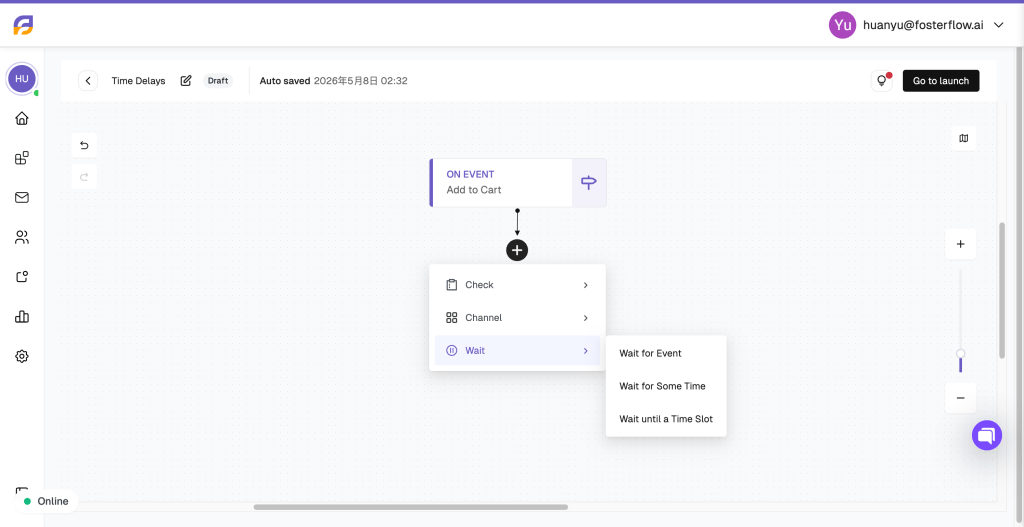
Wait for Some Time
In this abandoned cart scenario, we use the Add to Cart event as our trigger to target users who have initiated the shopping process. Next, we want to track the user’s future purchasing behavior to see if they complete their order.

Instead of messaging them immediately, we add a Wait for Some Time component. We configure the wait duration to 1 hour, giving the user a reasonable window to finish checking out on their own.
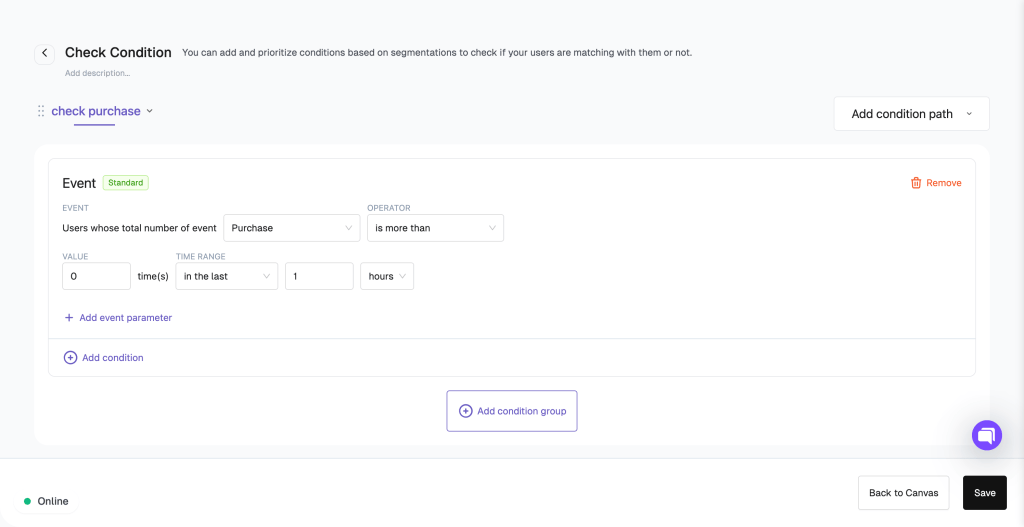
After waiting for one hour, we need to observe the user’s purchase status. We do this by adding a Check Condition step.
Note: It is crucial that the wait duration matches the Time Range used in your check condition. Because we waited for 1 hour, we set the condition to check if the user’s total number of “Purchase” events is more than 0 “in the last 1 hours”.
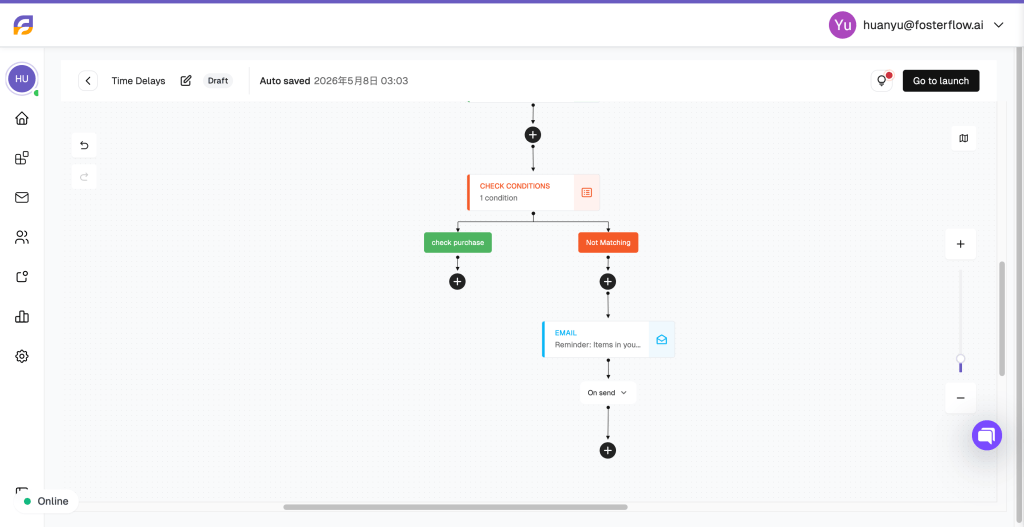
Wait For Event
If the user’s status falls into the “Not Matching” path (meaning they did not purchase within that first hour), we send them an initial reminder email. After this email is sent, we want to give them another opportunity to buy before sending any further communication.
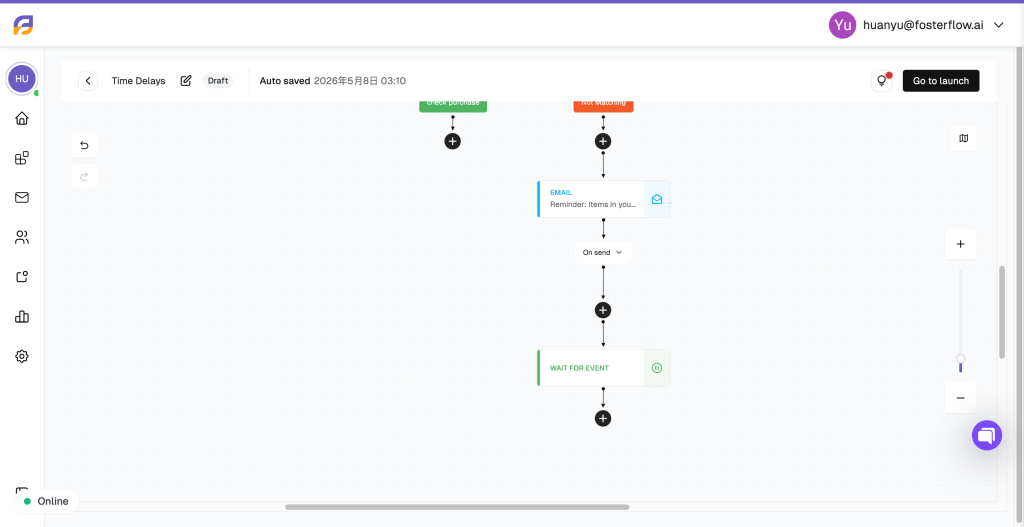
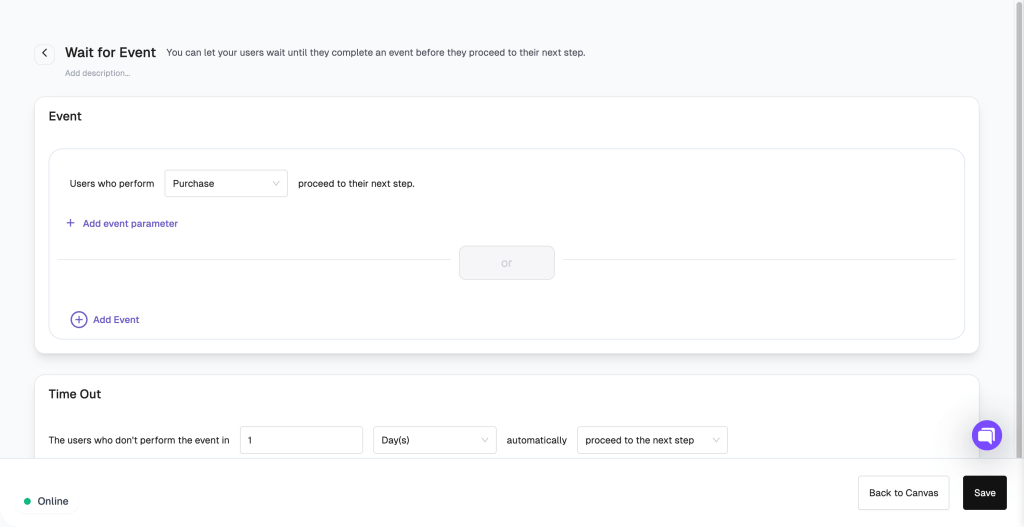
Here, we use the Wait for Event component. This component holds the user at this step until they perform a specific action. We configure the event to “Purchase”.
Additionally, we set a Time Out of 1 Day. This means if the user makes a purchase within the next 24 hours, they will immediately proceed to the next step. If they do not perform the purchase event within 1 day, the system will automatically push them forward to the next step in the flow.
Wait until a Time Slot
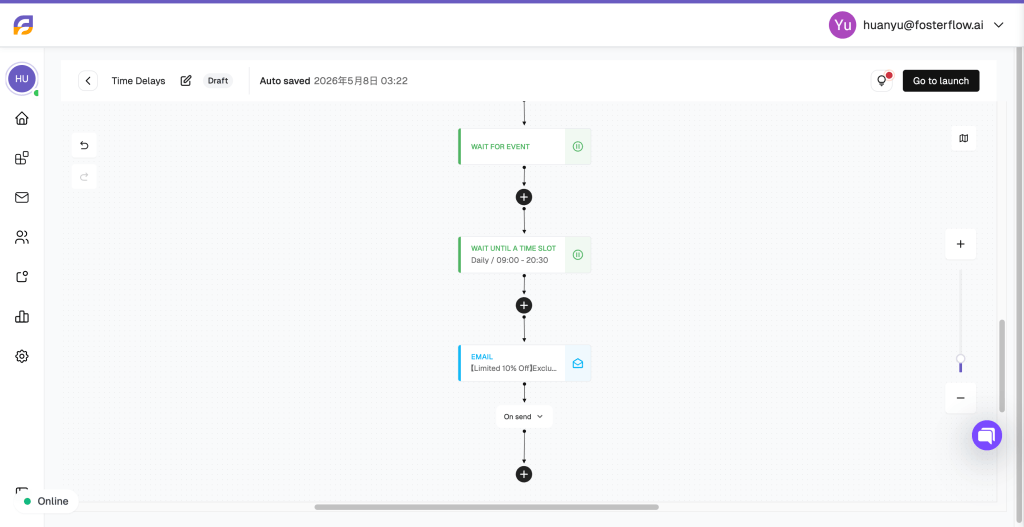
Following the previous configuration, if we do not receive the user’s purchase event within the 1-day timeout period, we plan to send them a second follow-up email. However, we want to avoid disturbing the user with an email notification during inappropriate hours, such as late at night.
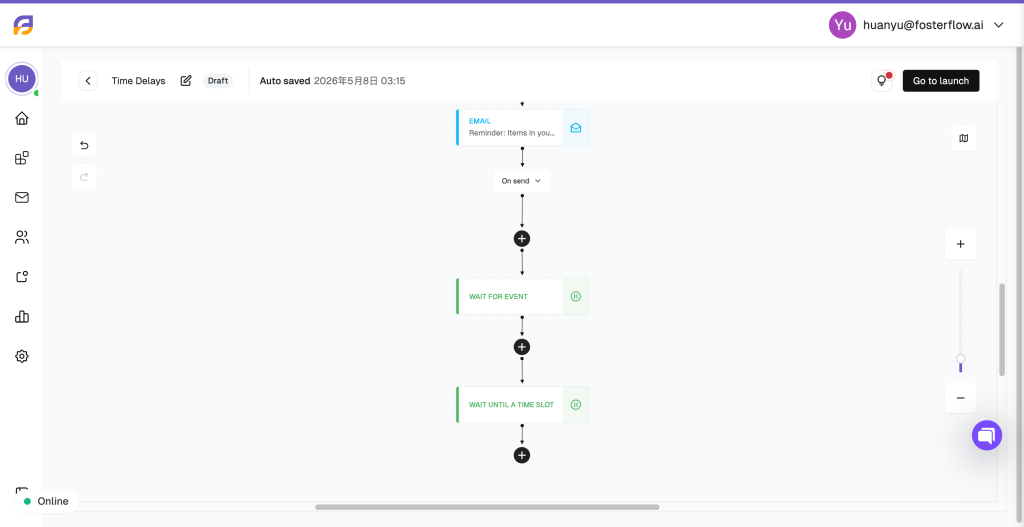
To ensure polite delivery times, we add a Wait until a Time Slot node before the second email. First, you can define the exact Time Zone for this delay, choosing either your store’s default timezone or a custom one, ensuring the delivery schedule is accurate regardless of when the user triggered the flow.
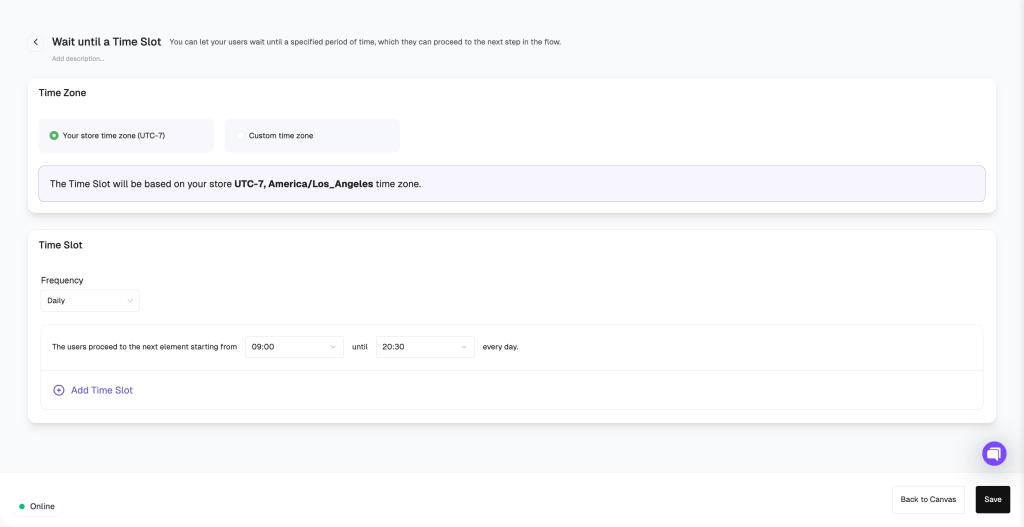
Next, we configure the specific Time Slot. By setting the frequency to “Daily” and defining the active hours from 09:00 until 20:30, the flow will pause the user if they arrive at this step outside of these hours. They will automatically proceed to receive the email once the current time falls within this acceptable window every day.
Conclusion
To summarize, time delays are highly versatile tools in FosterFlow that help you control the exact pacing, conditions, and delivery windows of your automated communications. By strategically utilizing Wait for Some Time, Wait for Event, and Wait until a Time Slot, you can avoid overwhelming your customers while maximizing conversion opportunities. We encourage you to try various combinations of these components to design and optimize the perfect marketing strategies for your business.