
Learn more about segment conditions, including how to filter them effectively. When building segments in FosterFlow, conditions are the building blocks you customize to include or exclude specific portions of your audience. Profiles will only appear in your dynamic segments when they meet the exact conditions configured during the segment’s creation.
Condition Capabilities
A single segment can have multiple conditions to help you define your exact target audience. When building a segment, you can include or exclude users based on the following standard condition capabilities:
- Purchasing & Visiting Behavior:
Focus on users according to their shopping frequency, spending amount, and total value, or target users based on their past visits to your website. - Attributes (Properties about a profile):
Segment users based on whether they possess specific attributes, including location data or standard/custom profile properties. - Events (What a profile has or has not done):
Segment users based on whether they’ve triggered a specific event. - Segments & Contacts (If a profile is or is not on a list):
Target users based on whether they are already members of specific segments or lists. This is also useful for excluding profiles (such as those in the EU for GDPR compliance). - Channel Reachability (If a profile can or cannot receive marketing):
Tailor your targeting to users depending on their accessibility and consent status on a specific communication channel.

Event Conditions
These conditions allow you to segment profiles based on events in FosterFlow, which represent actions that profiles have taken. When configuring an event condition, there are 3 core elements you can customize to refine your target audience:
- Frequency based on the event itself
- Timeframe of the event
- Event attributes/parameters

1. Frequency
After selecting an event activity (e.g., View Item), you can segment based on how often users have performed that activity. The available operators for calculating the total number of events include:
- is
- is not
- is more than
- is less than
- is equal to or more than
- is equal to or less than

2. Timeframe
After choosing a frequency, you will need to select a specific time range over which the system will count the number of events for each profile. The available time range operators are:
- before
- on the date of
- after
- in the last
- not in the last
- in the range of
- is empty
- is not empty
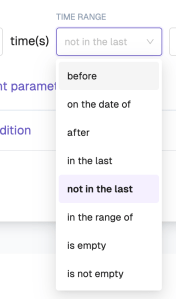
To define the exact duration, you can select from the following time units:
* minutes
* hours
* days
* weeks
* months
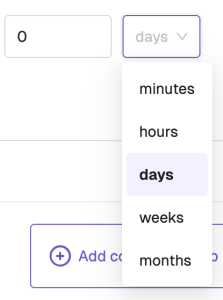
3. Event attributes/parameters
You can further refine the types of events that are included by adding parameter filters. All events have a unique set of parameters associated with them, which you can leverage to be highly specific about who you capture in your segment.
For example, if you are filtering based on a View Item event, you can add an event parameter filter to target specific items. Depending on the event, you can select parameters such as:
- Item Currency
- Items: Total Quantity
- Item Urls
- Item Images
- Item Category IDs
- Item Categories
