Welcome to FosterFlow! Email campaigns allow you to send targeted messages, promotions, and updates directly to your audience. This guide will walk you through the end-to-end process of creating, designing, launching, and analyzing your first email campaign in FosterFlow.
Creating an Email Campaign
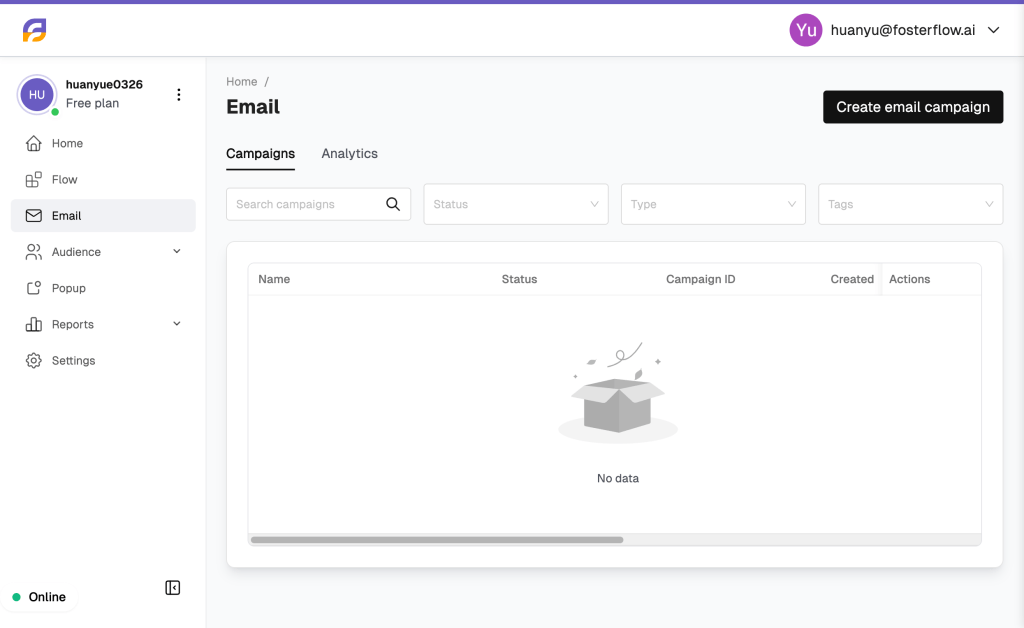
To get started, navigate to the Email section from the left-hand menu. Here, you will see an overview of your existing campaigns.
Click the Create email campaign button in the top right corner.
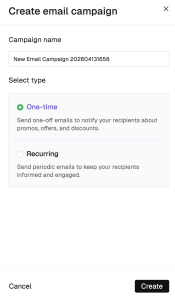
A setup window will appear. Enter a clear Campaign name to help you identify it later. Next, select your campaign type:
* One-time: Send a single, one-off email (e.g., for newsletters, special promos, or holiday offers).
* Recurring: Send periodic emails to keep your audience continuously engaged.
Click Create to proceed.
Choosing Your Recipients
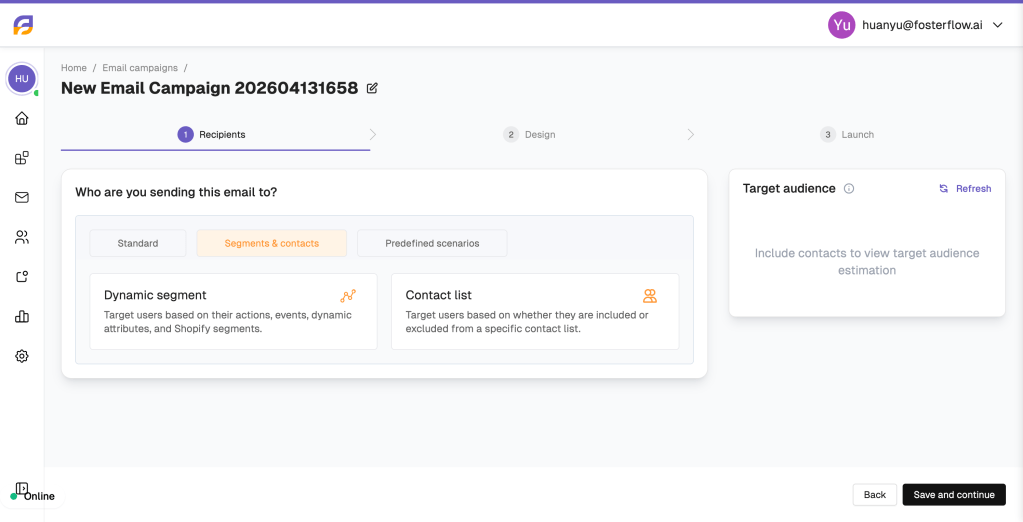
The first step in the campaign builder is selecting your target audience. FosterFlow offers powerful targeting capabilities to ensure your message reaches the right people.
Under the Segments & contacts tab, you can choose between:
* Dynamic segment: FosterFlow allows you to create dynamic segments that automatically update in real-time. You can target users based on their specific actions, events, dynamic attributes, and Shopify data.
* Contact list: Target a fixed group of users based on whether they are included in or excluded from a specific, static contact list.
Select your desired audience to view the target audience estimation, then click Save and continue.
Setting Up and Designing Your Email
Next, you will configure your email settings and craft the visual design of your message.
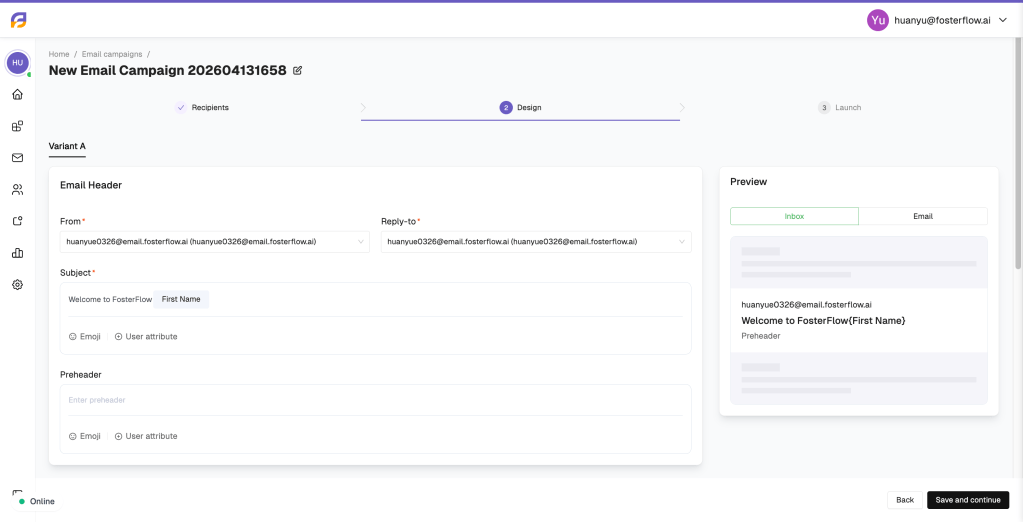
1. Email Header Configuration
Fill in the essential sender details:
* From & Reply-to: Select the sender email address your recipients will see and reply to.
* Subject: Write an engaging subject line. You can personalize this by inserting user attributes (like {First Name}) and emojis to increase open rates.
* Preheader: Add a brief summary text that appears next to the subject line in most email clients.
2. Email Design
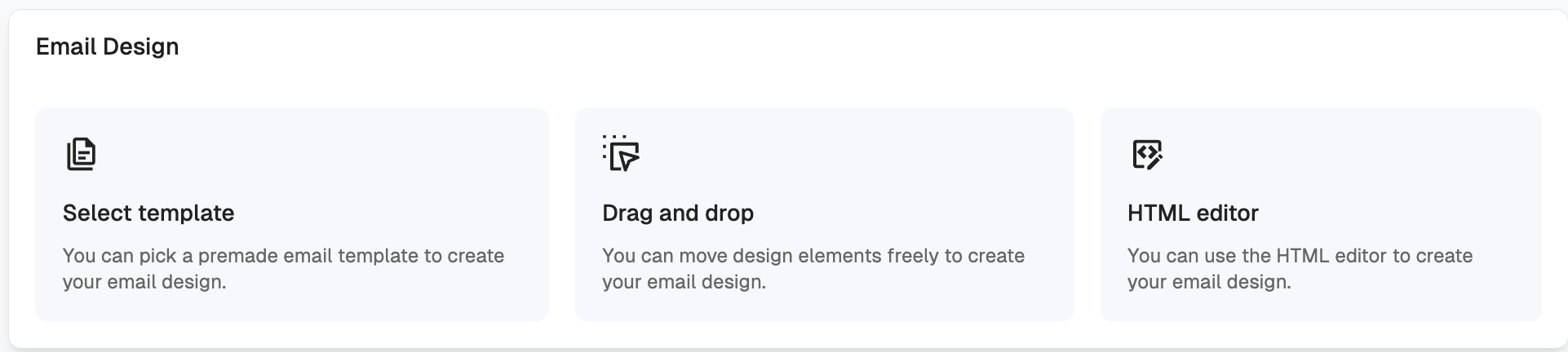
Scroll down to the Email Design section. FosterFlow provides three flexible ways to build your email:
* Select template: Choose from our library of premade, professionally designed email templates.
* Drag and drop: Use our visual editor to freely move design elements (images, text, buttons) and build your email from scratch without coding.
* HTML editor: For advanced users who want full control, write or paste your own custom HTML code.
3. UTM Parameters
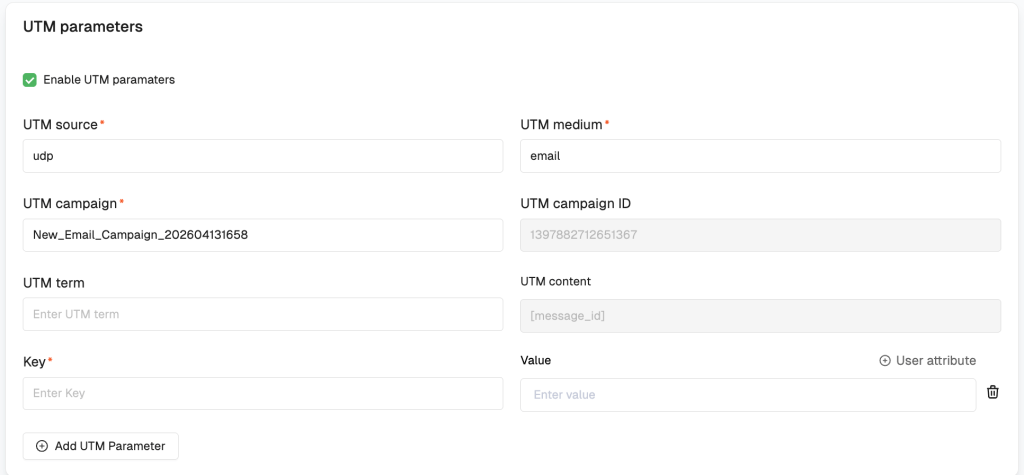
If you use external analytics tools (like Google Analytics), scroll down to enable UTM parameters. FosterFlow will automatically append parameters like utm_source, utm_medium, and utm_campaign to the links in your email, helping you accurately track web traffic and conversions driven by this campaign.
Launching Your Campaign
Once your audience is set and your design is perfect, it’s time to launch! In the final step, you will determine the Activation status of your campaign:
- Send Now: Dispatch the email to your selected audience immediately.
- Send Later: Schedule the campaign to be sent at a specific date and time (timezone is displayed for accuracy).
- Draft / Pause: Save your progress without sending, or temporarily halt a scheduled campaign.
On the right side, you can also configure Frequency capping to prevent over-emailing your customers and assign Campaign tags for better internal organization.
Click Launch when you are ready.

Analyzing Campaign Performance
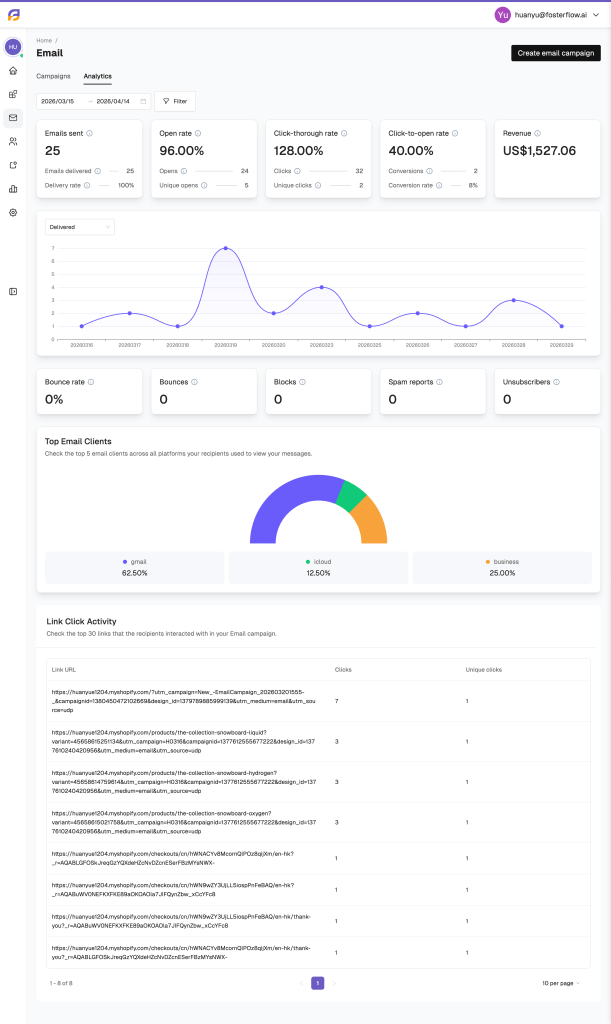
After your campaign has been sent, you can monitor its success in real-time. Navigate to the Analytics tab within the Email section.
FosterFlow provides a comprehensive dashboard to track key metrics:
* Top-level Metrics: Quickly view the total number of Emails sent, Delivery rate, Open rate, Click-through rate, and overall Revenue generated by the campaign.
* Delivery & Engagement Charts: Visualize your delivery and engagement trends over time.
* Top Email Clients: Understand what platforms (e.g., Gmail, iCloud) your recipients are using to view your messages.
* Link Click Activity: See exactly which links inside your email are performing best, complete with total clicks and unique clicks for each URL.